Listing up all your Git repos in your system using `find`


Introduction
I have been an avid user of tmux for a few years now. I love how I can quickly open terminal sessions and swap between them. As a developer with a lot of projects in my computer, tmux really helps me to manage my workflow.
One workflow that I use all the time is to open one of my projects using tmux windows, so that I can refer to code snippets quickly. No matter where I am in the terminal, a quick tmux shortcut will open up a different project in my system. From there, I can view/copy/edit whatever code I need, and then switch back to where I was with ease.
To run this workflow, I have been using ThePrimeagen's tmux-sessionizer script. This script does the following:
-
findfolders in specific directories that you specify - Allow you to fuzzy-find the specific folder you want with
fzf - Create a new
tmuxsession, where you arecdinto the folder you picked
Its a very simple yet effective script. However, there is a pain-point in the script that I want to modify. Specifically, the issue I want to fix is step 1.
When using the tmux-sessionizer, you need to add the folders where you store your projects manually. This is fine when you have one folder where you store all your projects:
rolzy ~ $ tree -L 1 ~/projects
/home/rolzy/projects
├── project1
├── project2
└── project3
In this case, all we have to do is search through ~/projects.
However, I like to add an extra level and categorize my projects:
rolzy ~ $ tree -L 1 ~/projects
/home/rolzy/projects
├── automation
│   ├── project1
│   ├── project2
│   └── project3
└── consulting
    ├── project4
    └── project5
In this case, I need to add both ~/projects/automation and ~/projects/consulting to the list of folders to search in the tmux-sessionizer script. This is fine if its a one-off thing, but my folder structure is forever changing. I need a better way to find all projects under my home directory.
But exactly how do we do this?
Well, all my projects are version controlled with git. Maybe we can use that to find my projects.
The find command
find is a command you can use to "search for files and folders in a directory hierarchy". You can run the command by running find <directory to search>. For example, if we run it against the home directory:
(env) rolzy ~ $ find ~
/home/rolzy
/home/rolzy/.rbenv
/home/rolzy/.rbenv/shims
/home/rolzy/.rbenv/versions
/home/rolzy/Documents
/home/rolzy/.bashrc
/home/rolzy/.pyenv
/home/rolzy/.pyenv/CONTRIBUTING.md
/home/rolzy/.pyenv/README.md
.
.
.
It lists all the files you have under the home directory. This is way too much info - remember, we only want to find git repos under our home directory.
Thankfully, find comes with a bunch of flags you can set to customize the search behavior. Lets look at it one by one.
The -type flag
By using the -type flag, you can find files that are a specific type. Using -type f will find files, -type d will find folders, -type l will find symlinks. Here, we want to find projects (which are folders), so lets use the -type d flag.
(env) rolzy ~ $ find ~ -type d
/home/rolzy
/home/rolzy/.rbenv
/home/rolzy/.rbenv/shims
/home/rolzy/.rbenv/versions
/home/rolzy/Documents
/home/rolzy/.pyenv
/home/rolzy/.pyenv/completions
/home/rolzy/.pyenv/plugins
.
.
.
Better! We can see the find command is skipping files like .bashrc and .md files. Lets look at another flag to filter even further.
The -name flag
By using the -name flag, you can search for files and folders with a specific substring.
Remember that we are looking for git repos. All git repos have a hidden .git folder in them, which we can use for our search:
(env) rolzy ~ $ find ~ -type d -name ".git"
/home/rolzy/.pyenv/plugins/pyenv-doctor/.git
/home/rolzy/.pyenv/plugins/pyenv-update/.git
/home/rolzy/.pyenv/plugins/pyenv-virtualenv/.git
/home/rolzy/neovim/.git
/home/rolzy/.zplug/.git
/home/rolzy/.zplug/repos/jeffreytse/zsh-vi-mode/.git
/home/rolzy/.local/share/nvim/lazy/bullets.vim/.git
/home/rolzy/.local/share/nvim/lazy/cmp-nvim-lsp/.git
/home/rolzy/.local/share/nvim/lazy/nvim-dap-virtual-text/.git
/home/rolzy/.local/share/nvim/lazy/nvim-lspconfig/.git
/home/rolzy/.local/share/nvim/lazy/vim-repeat/.git
.
.
.
A lot better!!! We have removed most of the clutter from the first find command. However, we have a lot of .git repos in hidden folders like .pyenv, .zplug and .local... They are plugins of tools that I use in my system, being cloned during installation. Lets try and remove those from the search as well.
The -prune flag
We are currently running the find command on the home directory. This is troublesome because there are a lot of folders in there that the find command have to traverse. As mentioned earlier, hidden folders in my home directory have a lot of git repos that I am not interested in. So, lets tell find to skip searching these folders.
Using the prune flag tells find to not traverse specific paths. Lets tell it to skip all hidden folders. To do this, use the -name flag that we looked at earlier, and put -prune flag after the search pattern to skip the matching files:
(env) rolzy ~ $ find ~ -name ".*" -prune -type d -name ".git"
/home/rolzy/projects/fetch_reddit_wallpapers/.git
/home/rolzy/projects/obsidian_vault/.git
/home/rolzy/projects/mealsteals/.git
/home/rolzy/neovim/.git
/home/rolzy/dotfiles/.git
Great! We now have a small list of projects that are in my home directory. The last step is to remove .git from the file path so it takes me to the project root folder instead.
The -exec flag
The -exec flag allows you to run a command against all the files that were found with the find command. So far, the find command is finding all .git folders - we don't need the .git component, we just want the folder directory. To get rid of .git, we can execute the dirname command on the search results to strip the last component from the file name.
To use the -exec flag, pass in the command with {} as the placeholder for the search result. And then, pass in \; as the terminal character. For example:
(env) rolzy ~ $ find ~ -name ".*" -prune -name ".git" -type d -exec dirname {} \;
/home/rolzy/projects/fetch_reddit_wallpapers
/home/rolzy/projects/obsidian_vault
/home/rolzy/projects/mealsteals
/home/rolzy/neovim
/home/rolzy/dotfiles
Perfect! We now have the list of project folders under the home directory.
Putting it together
Now all we have to do is replace the newly made find command to the tmux-sessionizer script:
find ~ -name ".*" -prune -name ".git" -type d -exec dirname {} ; | fzf
 rolzy
rolzy
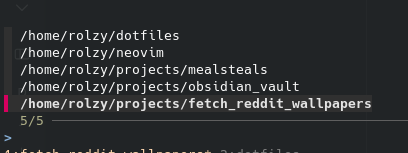
Here, we are piping the find results into the fzf command so that we can fuzzy-find search our projects in the home directory. The rest of the script will create a new tmux session on the project folder that you choose.